Amplitude
Flagsmith is available as a cohort destination in Amplitude's catalogue. Once connected, every Amplitude cohort you synchronise appears in Flagsmith as a segment, and Amplitude keeps its members up to date for you.
Read the cohort synchronisation overview first for how synchronised segments behave.
Flagsmith matches cohort members to identities by identifier, so the Amplitude user_id must be the same value your
application uses as the Flagsmith identity identifier.
1. Create a synchronisation key in Flagsmith
- Go to the Segments page in your project and click Create Segment.
- Choose Amplitude.
- Select the environment you want to synchronise cohorts into.
- Create a synchronisation key: give it a name, such as "Amplitude production", and copy the key value. It is shown only once. If the environment already has a key that you created earlier and still have, you can reuse it instead.
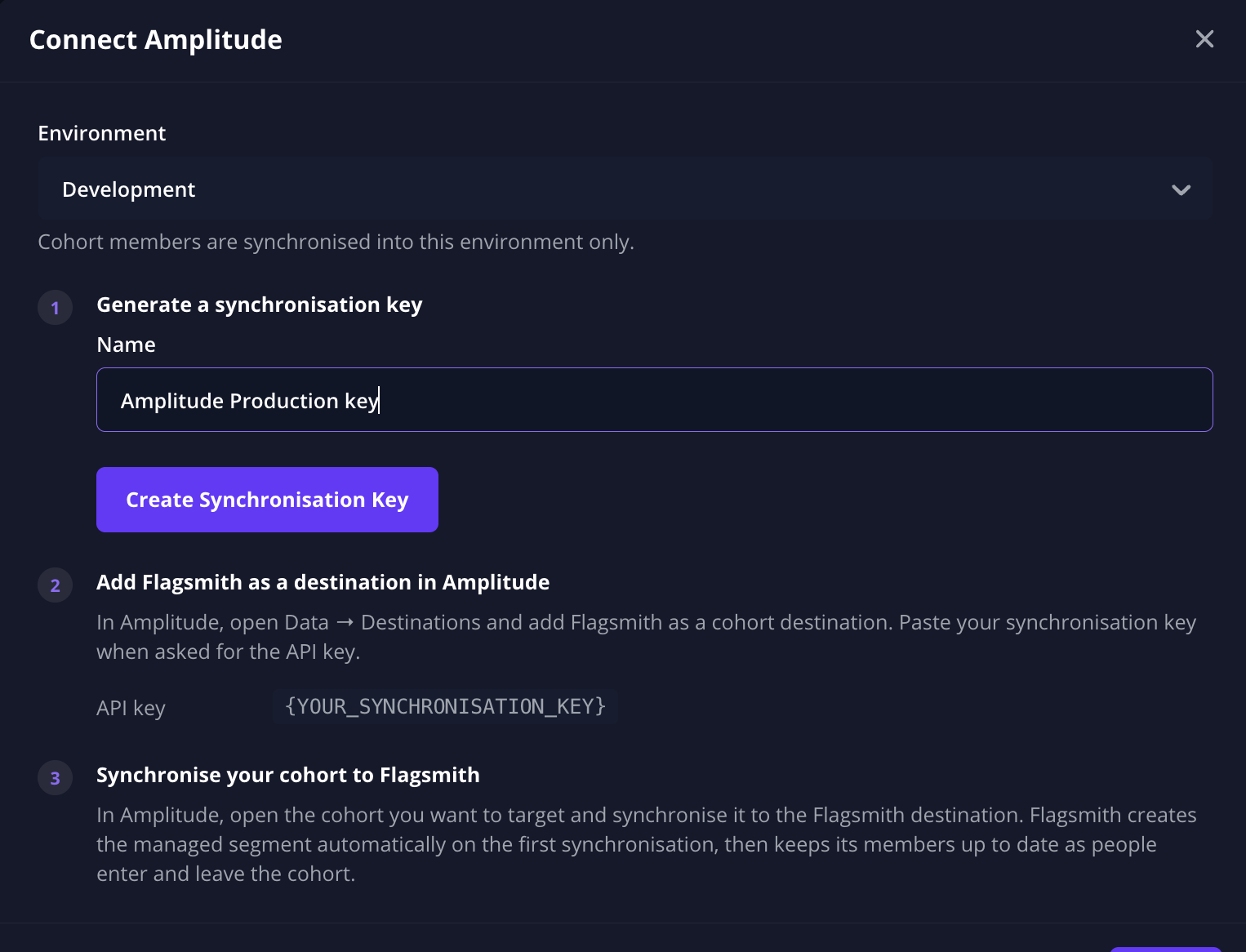
2. Add Flagsmith as a destination in Amplitude
- In Amplitude, go to Data > Catalog > Destinations and find Flagsmith in the cohort destinations catalogue.
- Give the destination a recognisable name. Including the Flagsmith environment name is a good idea, because the key decides which environment the cohorts are synchronised into.
- Paste your synchronisation key into the Cohort sync api key field.
- Check the Identifier Mapping. Amplitude's User ID must map to the Flagsmith Identifier.
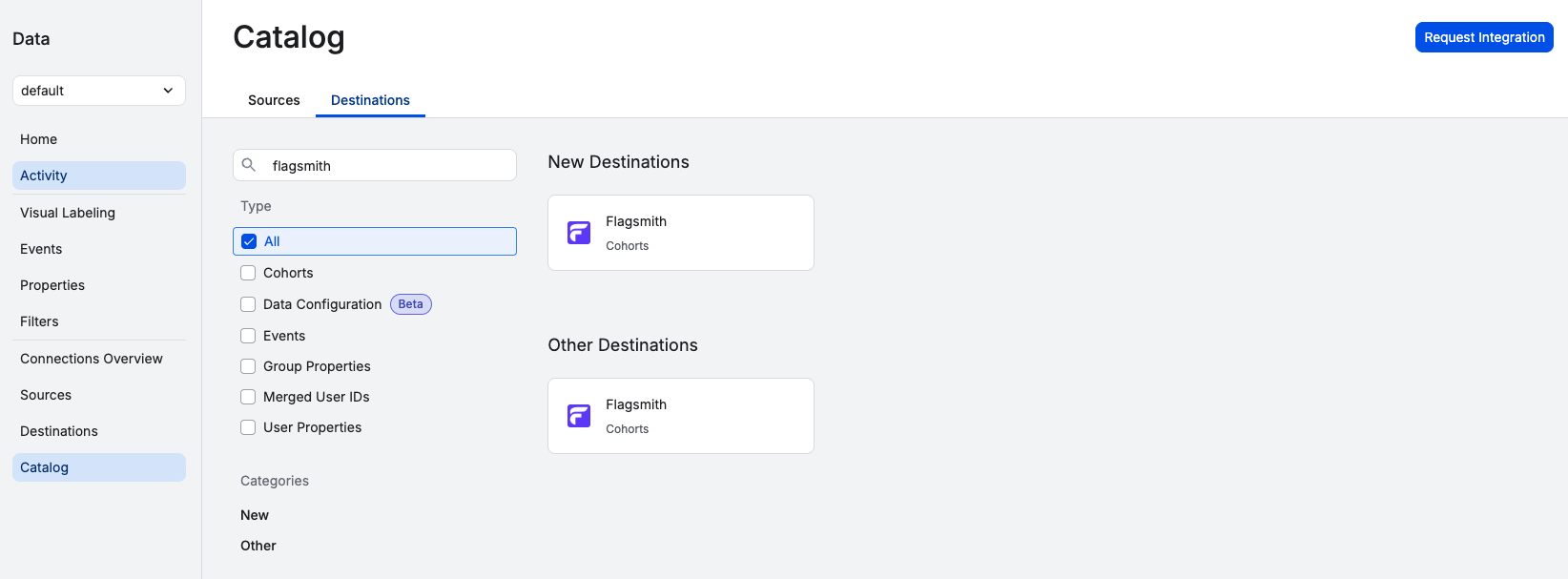
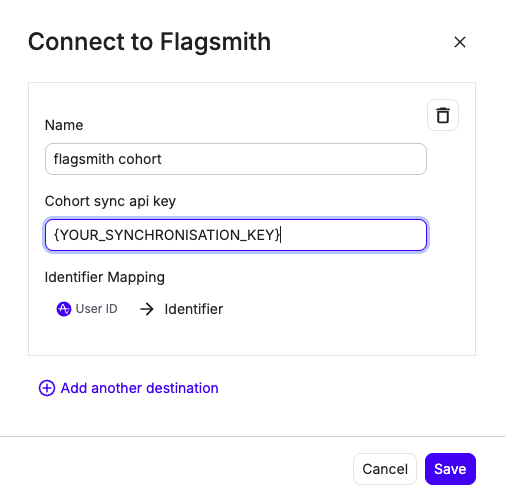
Every cohort sent to this destination is synchronised into the environment its key belongs to, and nothing in Amplitude shows which one that is. To synchronise cohorts into a second environment, create a key there and add a second Flagsmith destination for it.
3. Synchronise a cohort
-
In Amplitude, open the cohort you want to target and click Target users.
-
Select your Flagsmith destination.
-
Choose the cadence, then click Sync:
- One-Time Sync sends the cohort's current members once.
- Scheduled Sync resends the membership every hour or every day.
- Real-Time Sync resends the membership every minute.
Scheduled and real time syncs keep the Flagsmith segment up to date on their own. With a one-time sync, later changes to the cohort do not reach Flagsmith until you synchronise it again.
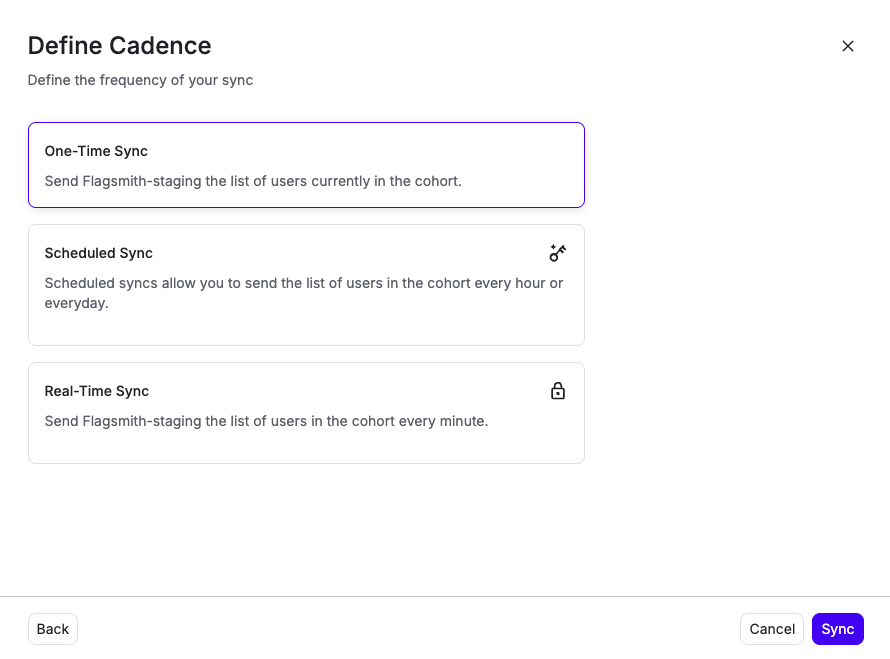
Shortly after the first synchronisation, a segment named after your cohort appears on the Segments page of your project, ready to be used in segment overrides.
Notes
- Each cohort synchronisation you set up in Amplitude creates its own segment in Flagsmith. Synchronising the same cohort to a second destination creates a second segment.
- If you delete a synchronised segment in Flagsmith, stop the cohort synchronisation in Amplitude as well. Otherwise Amplitude reports the synchronisation as failing and may pause it.